MOP
Mesh OFDM Protocol
MOP is beta software, still in development. Things will change, and some may not work yet. Please report anything odd.
I'm looking for people in the Los Angeles area to help test it on the air. Interested? Email me at KO6IKR@gmail.com. 73 de KO6IKR
Contents
- 1Welcome — what MOP is and what you need
- 2Install MOP — download, unpack, start
- 3The MOP window — a quick tour
- 4Your station — callsign, key, equipment, position
- 5Connect your radio — sound, push-to-talk, recipes
- 6On the air — Connect and your first beacon
- 7Messages — send, ticks, CQ, emergency, files
- 8Groups
- 9Stations
- 10The map
- 11The public map & updates
- 12Your files & backups
- 13When something's wrong
- 14Where MOP is going — the road map, and the EmComm tab
- AFinding your COM port
- BSetting your sound card to 48 kHz
- CWords you'll meet
The newest version of this manual is always at mopx.duckdns.org/manual.
1Welcome
MOP is a complete digital messaging network for FM: its own high-speed modem, a mesh that builds itself, and delivery you can trust, on the radio you already own. No internet, no repeater, and no central station needed.
Short bursts, not phone calls
Most digital modes on FM work like a telephone call: connect, shake hands, send, wait, disconnect. That's fine for one long email to one gateway. For a short message it means seconds of setup before the first word goes out, and while that call is running, everyone else on the frequency waits. MOP works the way radio is at its best: like a broadcast.
📞 Session modes
Connect → handshake → send → wait → disconnect. One station talks to one station; the rest of the frequency waits. Often built around a gateway or a central server, so when that is unreachable, everything stops.
📡 MOP
Key up → send one short burst → done. A short message is on the air for about a second. Everyone in range hears it, any MOP station can pass it on, and there is no center: if one station goes off the air, the mesh simply goes around it.
Think of text messaging on a phone, except the cell towers are the MOP stations themselves. You pick a callsign, type, and press Enter. MOP finds the way: straight to the other station if it can hear you, or hopping through other MOP stations if it can't. When the message arrives, the other station confirms it and you see ✓ delivered, even when it took three hops to get there. If the other station is switched off, your message waits and goes out by itself the moment they're back on the air.
Every MOP station sends a short beacon now and then: "I'm here, this is where I am, and these are the stations I can hear." From those beacons, and from everything else it hears, every MOP station learns the map of who can reach whom. That map is the mesh, and it repairs itself when stations come and go.
The online manual (mopx.duckdns.org/manual) has a live version of this picture: press the buttons and watch the mesh at work.
What's inside
📶 Its own modem
No separate modem program. MOP sends 32 tones at once in one FM voice channel (OFDM), and picks the speed for each station by itself: from a rock-solid 1,050 bit/s on a weak path up to 9,450 bit/s on a clean one. That's up to eight times faster than 1200-baud packet.
🕸️ A mesh that builds itself
No paths to set, no node lists to keep. Every station learns the routes on its own, and any MOP station can pass messages along for others. Stations that can't hear each other learn to take turns instead of talking over each other.
✅ Delivery you can trust
✓ means the other station has it, not just "it left my radio". MOP retries by itself, carries the confirmation back through relays, and keeps messages for stations that are off the air until they're heard again.
🔏 Signed, not secret
Every message carries your digital signature, so others know it's really from you and wasn't changed on the way. Nothing is hidden: everyone can read it, as amateur radio rules require. Messages are also compressed, so they're on the air for less time.
👥 Everything a team needs
A conversation per station, groups for your net or ARES team, CQ bulletins to everyone in range, an emergency channel that floods the whole mesh, files, pictures and positions, and a live map of who hears whom.
🌍 Internet: optional
MOP never needs the internet to pass messages. Stations that do have it can share what they hear on the public MOP-IS map, so everyone can see the mesh grow, live, in a web browser.
How MOP compares
You probably know one or more of these. Each is good at its own job; here's where MOP fits.
| VARA FM + Winlink | Packet (1200 baud) | MOP | |
|---|---|---|---|
| How it talks | A connected session: call setup, data, disconnect | A connected session to a node or BBS | Short bursts, no call setup |
| A short message | Seconds of setup before the first word | Connect first, then a second or two at 1200 bit/s | About a second, at up to 9,450 bit/s |
| Who hears it | The one station in the session | The station you're connected to | Everyone in range |
| Finding the way | You pick the gateway or station | Node paths you set up | Automatic, learned from what every station hears |
| Station off the air | Mail waits in the Winlink system | Waits on a BBS | Waits in MOP, goes out when they're heard again |
| Delivery confirmed | Yes, inside the session | Yes, inside the session | ✓ end to end, back through relays |
| Emergency | Normal traffic | Normal traffic | Floods the whole mesh, every station alerted |
| Depends on | A gateway in range; Winlink servers for email | Nodes and BBSs run by sysops | Nothing but other MOP stations |
MOP doesn't replace your other modes: you can keep packet and VARA FM set up next to it. Only one program can use the sound card at a time, so close the others while MOP is connected.
What you need
- A computer with Windows 10 or 11.
- Your FM radio (2 m, 70 cm, or any FM channel you're licensed for).
- A connection between radio and computer. That's either an interface (a Digirig, a SignaLink, an AIOC cable…) or simply the radio's own USB cable (FT-991A, IC-7300, IC-705 and similar have a sound card built in).
- Your amateur radio license and callsign.
- Someone to talk to: a friend with MOP, or a second radio of your own.
You do not need any other software. MOP brings its own modem.
How to read this manual
Words in a grey box, like ▶ Connect, are exactly what you'll see on the screen: a button, a tab, or a choice in a list. Keys on your keyboard look like Enter. Steps are numbered; do them in order.
Nothing in this manual can damage your radio or your computer. If something doesn't work, go back one step, or look in chapter 13, When something's wrong.
2Install MOP
About five minutes. MOP comes as one zip file; there's no installer to click through.
Download
- Open your web browser and go to mopx.duckdns.org/download.
- Click the big orange ⬇ Download MOP button. Your browser saves a file
called something like
MOP-0.19.2-windows.zipin your Downloads folder. It's large (a few hundred MB), so give it a minute or two.
Unpack
- Open File Explorer: the yellow folder on the taskbar at the bottom of the screen. Click Downloads on the left.
- Right-click the MOP zip file and choose Extract All….
- A box opens showing where the files will go. The Desktop is a good place: click Browse…, pick Desktop, then click Extract.
- A new folder opens, called
MOP-0.19.2. It holds many files. The one that matters is MOP.exe, with the MOP icon (coloured bars with dots on top).
Make a Desktop shortcut
- Right-click MOP.exe. On Windows 11, click Show more options first.
- Choose Send to → Desktop (create shortcut).
From now on you start MOP by double-clicking MOP on your Desktop.
The first start
Double-click MOP. The first time, Windows may show a blue box:
This appears because MOP isn't signed with a paid certificate yet. Click More info, then Run anyway. Windows remembers your choice and won't ask again.
Some antivirus programs distrust any program they haven't seen before. If yours moves MOP.exe to "quarantine", restore it and mark it as allowed. If you're unsure, ask the person who sent you MOP.
After a few seconds the MOP window opens. On to the tour.
3The MOP window
One bar along the top, five tabs below it.
| # | What it is |
|---|---|
| 1 | Your callsign. Shows Call: — until you've set it (chapter 4). |
| 2 | RX meter. How loud the sound coming from your radio is. It should move when the radio receives. |
| 3 | Link strip. What the modem is doing: IDLE, receiving, sending, and the signal quality. |
| 4 | Status. ● Disconnected (red) or ● Connected (green): whether MOP is using the radio right now. |
| 5 | ▶ Connect starts using the radio; it then turns into ■ Disconnect. Further left you may see 📖 Manual (opens this manual) and, when a new version is out, an orange ⬆ MOP … available button. |
| 6 | The five tabs. Click a name to switch. |
The five tabs
| 💬 | Messages: your conversations, groups, CQ and emergency. Chapter 7. |
| 🗺 | Map: every station heard, and who hears whom. Chapter 10. |
| 📡 | Radio: what the modem is doing, and the Activity Log of everything MOP did. Handy when you ask for help. |
| 👥 | Stations: a list of every station MOP knows, your contacts, and making groups. Chapter 9. |
| ⚙️ | Settings: your callsign, radio, and everything else. Chapters 4 to 6. |
Settings at a glance
Click ⚙️ Settings. On the left is a list of five sections. Each has a coloured dot:
| 🟢 | Green: fine as it is. |
| 🟡 | Amber: worth a look. |
| 🔴 | Red: needs filling in before MOP can work. |
Click a section to see it. At the bottom right is one button, 💾 Save and apply, which saves all sections at once. Nothing you change counts until you press it.
4Your station
Who you are on the mesh, what equipment you use, and where you are.
Where: ⚙️ Settings → Station
🪪 Identity
- Station ID: type your callsign in the first box, for example
KO6IKR. - In the box next to it, pick an SSID only if you run more than one MOP station (for example 1 for your second station). One station? Leave it at (none).
- Role: leave it on station.
relay means "I'm on a good hill, pass messages along for others". gateway means "this station also shares what it hears on the internet map". - Key Status: click Generate, then Yes. MOP makes your personal signing key. You only do this once.
Every message you send carries a digital signature made with your key. Other stations can check it and know the message really came from you and wasn't changed on the way. It does not hide anything: everyone can still read your messages, as amateur radio rules require. Back the key up (chapter 12): it's what makes you you on the mesh.
📻 Equipment
- Radio: open the list and pick your radio, for example Yaesu FT-991A. Not in the list? Just type its name.
- Interface: pick what connects radio and computer, for example Digirig Mobile, or Radio's built-in USB audio if you only use the radio's USB cable.
These two go into your beacon, so other operators see what you're running, on their map and in their Stations list. They don't change how MOP works.
📍 Position
Where your station is, so it shows on the map.
- Source: choose Manual only, unless a GPS receiver is plugged in (see below).
- Latitude and Longitude: type your position in degrees, for example
34.10413and-118.20832. West and south are negative. - Beacon: how precisely your position goes out on the air. Everyone can read it.
Exact position (~1 m) Your exact spot Rounded ~100 m Your street, not your house. A good choice at home Rounded ~1 km Your neighbourhood Grid square only Only your Maidenhead grid square - Leave Set Grid from position ticked: MOP works out your grid square for you.
Open Google Maps in your browser, find your house, and right-click on it. The first
line of the little menu is your position, like 34.10413, -118.20832. Click it to
copy it.
Below the position, MOP shows the Ground elevation here, in metres and feet. It looks this up on the internet from NASA and USGS elevation maps. No internet? It says so, and fills it in later.
With a GPS receiver
Set Source to GPS (manual if no fix). Pick the GPS's GPS port (press 🔄 to look again for newly plugged-in devices) and its Baud (usually 4800 or 9600), then click ▶ Connect GPS. Once it has a fix, MOP uses it; ⬇ Use GPS fix copies that position into the Latitude and Longitude boxes, so it stays even when the GPS is unplugged.
Press 💾 Save and apply before you move on.
5Connect your radio
The most important chapter. MOP needs two things: sound in and out, and a way to key the transmitter (push-to-talk, or PTT).
Where: ⚙️ Settings → Radio
Before you start: plug the interface (or the radio's USB cable) into the computer and switch the radio on. Windows only shows devices that are plugged in.
If VARA FM works on this computer and radio, MOP can use exactly the same cable, sound card and push-to-talk. Open VARA FM's Settings → SoundCard and Settings → PTT menus, and copy what they say:
| VARA FM says | In MOP, set |
|---|---|
| SoundCard: Device Input / Output | Input (RX) / Output (TX): the same device |
| PTT: VOX or SignaLink | Method VOX / none |
| PTT: COM, RTS or DTR | Method Serial RTS / DTR, same port, the same line high |
| PTT: CAT, your radio and port | Method for your radio's brand (table below), same Port and Speed |
| VARA FM Wide | Radio on FM wide (see the box below): MOP always needs it |
Close VARA FM (and Winlink Express) before you click ▶ Connect in MOP: only one program at a time can use the sound card and the PTT port. Your radio's menu settings for VARA (DATA mode, data port, levels) are usually right for MOP as well; just check the no processing list below.
MOP's 32 tones fill the whole voice channel. On narrow FM (12.5 kHz, often shown as N, NAR or FM-N) the radio cuts off the outer tones and MOP fails or slows down to a crawl. Set the radio, or the memory channel you use for MOP, to wide (W, FM, 25 kHz). Both stations must be on wide.
Use plain carrier squelch (or leave the squelch open) on the frequency you use for MOP, not tone squelch (CTCSS, "T SQL", DCS). A tone squelch opens a moment too late, and the start of every MOP transmission is the part MOP needs most. Transmitting a tone is fine; only the receive side must not wait for one.
🔊 Sound
- Input (RX): open the list and pick your interface's microphone. It's usually called USB Audio Device, USB Audio CODEC or USB PnP Sound Device. Do not pick your computer's own microphone.
- Output (TX): pick the same interface's speakers (same kind of name).
- Look for a ✓ next to each one. A ✗ means Windows has that device at the wrong setting. Appendix B fixes it in two minutes.
Unplug it, plug it in again, and press 🔄 Refresh.
Digirigs and most USB interfaces all call themselves USB Audio Device or USB PnP Sound Device. Give each one its own name in Windows, like Digirig 991, so you always pick the right one. It takes two minutes: Appendix B, "Give your interface its own name".
🎙️ Push-to-talk
- Method: pick how MOP keys your radio. Find your setup in the table below.
- Fill in the boxes that appear under it. Most methods only ask for a Port
(like
COM5; Appendix A shows how to find yours) and sometimes a Speed. - Tune the radio to a clear frequency, or connect a dummy load, and press 🔴 Test PTT (1 s). Your radio should transmit for one second.
| Your setup | Pick this Method |
|---|---|
| Digirig Mobile, or a serial interface | Serial RTS / DTR, with RTS high |
| Digirig Lite, AIOC cable, CM108 sound card | CM108 GPIO, pin GPIO 3 |
| SignaLink, or the radio on VOX | VOX / none |
| Yaesu FT-991A, FT-891, FT-710, FTDX10, FTDX101 on USB | Yaesu CAT (TX1; / TX0;) |
| Yaesu FT-817, FT-818, FT-857, FT-897 | Yaesu CAT, 5-byte |
| Icom (IC-7300, IC-705, IC-9700…) on USB | Icom CI-V |
| Kenwood or Elecraft | Kenwood / Elecraft CAT |
| Anything else with computer control | Hamlib rigctld (or flrig, if it already runs your radio) |
🔴 Test PTT (1 s) keys the transmitter for one second without sound. Use a clear frequency or a dummy load, and make sure you're on a frequency you may transmit on.
Recipes
Find your setup and do just that one. Each recipe ends with 💾 Save and apply.
🔌 Digirig Mobile (any radio)
- Input (RX) and Output (TX): the Digirig's sound card (USB Audio Device or USB PnP Sound Device).
- Method: Serial RTS / DTR.
- Port: the Digirig's COM port. In Device Manager it's the Silicon Labs CP210x USB to UART Bridge line.
- RTS: high. DTR: off.
- 🔴 Test PTT (1 s).
- Going into the microphone jack? Switch off the radio's speech processor and mic EQ (see Keep the sound clean).
🎛️ Digirig Lite or AIOC cable
- Input (RX) and Output (TX): the interface's sound card.
- Method: CM108 GPIO. Device: pick yours, or leave first one found.
- PTT pin: GPIO 3.
- 🔴 Test PTT (1 s).
🟦 Yaesu FT-991A on its own USB cable
On the radio:
- Press MENU and set CAT RATE to 38400.
- Set the menu that chooses where data audio comes from to USB (on the FT-991A it's DATA PORT SELECT), and use a DATA mode for MOP. Your radio's manual has the details.
In MOP:
- Input (RX) and Output (TX): USB Audio CODEC.
- Method: Yaesu CAT (TX1; / TX0;).
- Port: the radio's Enhanced COM port. Device Manager shows two; use the one that says Enhanced.
- Speed: 38400, the same as CAT RATE on the radio.
- 🔴 Test PTT (1 s).
🟥 Icom IC-7300, IC-705 or IC-9700 on USB
On the radio:
- MENU → SET → Connectors: set the data modulation input (DATA MOD, or USB MOD Level, depending on the model) so data audio comes from USB.
- In the CI-V menu, note the CI-V Baud Rate.
In MOP:
- Input (RX) and Output (TX): USB Audio CODEC.
- Method: Icom CI-V.
- Port: the radio's COM port (Device Manager: USB Serial Device or Silicon Labs).
- Speed: the CI-V Baud Rate from the radio.
- CI-V address: pick your radio from the list.
- 🔴 Test PTT (1 s).
🔈 SignaLink, or any interface with its own VOX
- Input (RX) and Output (TX): the SignaLink's sound card (USB Audio CODEC).
- Method: VOX / none. The SignaLink keys the radio by itself when MOP plays sound.
- Turn the SignaLink's DLY knob fairly low (around 9 o'clock), so the radio goes back to receive quickly after each transmission. MOP needs to hear the answer.
- Cabled to the microphone jack? Switch off the radio's speech processor and mic EQ (see Keep the sound clean).
🧰 Kenwood, Elecraft and other radios
Kenwood and Elecraft radios: Method Kenwood / Elecraft CAT, then Port and Speed as set in the radio's menu.
Other radios with computer control: install the free Hamlib package, start
rigctld for your radio, and choose Hamlib rigctld in MOP with address
127.0.0.1:4532. Already using flrig? Choose flrig; nothing else to install.
🚫 Keep the sound clean: no processing
MOP sends 32 tones side by side, all at once. Speech processors, compressors, equalizers and noise reduction are made for a voice: they make some of those tones louder, others quieter, and smear the rest. The other station then can't read them. Even a little processing can turn a perfect signal into nothing. This matters most when the audio goes into the radio's microphone jack, because that path runs through all of the radio's voice processing.
On the radio: switch these OFF (for transmit)
| Look for | Also called |
|---|---|
| Speech processor | PROC, PROCESSOR, COMP, speech compressor |
| Microphone equalizer | MIC EQ, PRMTRC EQ, TX EQ, TBW (transmit bandwidth set to wide is fine), tone/bass/treble |
| Voice effects | voice changer, scrambler, "DX voice", VOX delay effects |
On the radio: switch these OFF (for receive)
| Look for | Also called |
|---|---|
| Noise reduction | DNR, NR, DSP NR, noise cancel |
| Noise blanker | NB |
| Audio filters and tone shaping | CONTOUR, NOTCH, DNF (auto notch), RX EQ, APF |
Radios differ: look in your radio's manual for the menu names. If you can, use a DATA mode and the data port (6-pin mini-DIN) or the radio's USB audio: those paths skip most voice processing. In the microphone jack, also keep MIC GAIN moderate: too high squashes the tones just like a compressor.
On the computer: switch off Windows sound effects
Windows can "improve" the interface's sound as well. Turn that off, once, for both directions. Appendix B shows where: in the same Properties windows where you set 48 kHz.
- Enhancements tab (or Audio enhancements in Windows 11): Off / tick Disable all enhancements. That includes noise suppression, echo cancellation, and loudness equalization.
- Any "sound booster", headset or gaming audio program (Realtek Audio Console, Nahimic, Dolby, Sonic Studio…): off for the interface.
The 📡 Radio tab shows each received frame's signal quality (S/N) and the constellation: neat, tight dots mean clean audio. If the other station hears you at a lower S/N than you hear them, look for processing on your transmit side first.
📊 Levels
Leave TX drive at 70 % and RX gain at 100 % to start with.
MOP sends 32 tones at once. Too much drive distorts all of them. If the other station's signal quality gets worse as you turn TX drive up, turn it back down. On the receive side, set your radio's data-port level first and leave RX gain at 100 %.
📶 Modem
Click Modem in the list on the left. It should say Backend: ofdm and Level: Auto. Leave it like that: MOP picks the fastest speed the path allows by itself.
Now press 💾 Save and apply. A box says Settings saved; click OK.
6On the air
Connect, send a beacon, and see the other station appear.
- Tune both radios to the same simplex frequency your group uses for MOP, in FM wide (not narrow; see chapter 5).
- Click ▶ Connect at the top right. The status turns green: ● Connected.
- Go to ⚙️ Settings → Beacons & Internet and click 📡 Beacon Now. Your radio transmits a short burst, about a second. That's your station announcing itself.
- Ask the other station to do the same. When their beacon arrives, they appear in the 👥 Stations tab and on the 🗺 Map.
…the other station's callsign shows up in 👥 Stations with a green dot, and the RX meter at the top jumped when their beacon came in.
Automatic beacons
In ⚙️ Settings → Beacons & Internet, Enable beacons sends a beacon by itself every Interval (2 hours unless you change it). MOP also learns about stations from everything it hears, so after a while stations appear without anyone pressing anything.
MOP only receives while it's connected. Leave it on ● Connected when you're near the radio; messages for you, and messages you pass along for others, depend on it.
7Messages
Like texting on a phone: one conversation per station, with ticks that tell you when it arrived.
Where: 💬 Messages
The list on the left has three parts:
| Part | What's in it |
|---|---|
| CHANNELS | 📣 CQ / Bulletins (to everyone in range) and 🚨 Emergency (to the whole mesh). |
| GROUPS | Your groups, and + New group…. Chapter 8. |
| STATIONS | One conversation per station, newest first, with how well you hear each other. |
Send your first message
- Under STATIONS, click the other station's callsign.
Not there yet? Click + at the top of the list and type their callsign, for example
KO6IKS-2. - Type your message in the box at the bottom, for example
Hello from MOP! 73. - Press Enter, or click Send. For a new line without sending, press Shift + Enter.
- Your radio transmits. Watch the mark next to your message.
What the marks mean
| Mark | Meaning | What you can do |
|---|---|---|
| ⏳ | Sending. On its way; big messages show their progress. | Wait. |
| ✓ | Delivered. The other station has it and confirmed, even if it went through relays. | Nothing: done. |
| ⏸ | Waiting. The station isn't reachable right now. MOP sends it the moment that station is heard again. | Send now or Cancel. |
| ✕ | Failed. No answer after many tries (or 48 hours). | Resend or Edit. |
A ⏸ waiting message is fine. It goes out by itself when the other station beacons again, as long as your MOP stays connected.
📣 CQ / Bulletins
Click 📣 CQ / Bulletins and type: your message goes to every station in range, and relays repeat it a few hops further. Nobody confirms a bulletin, so there's no ✓.
🚨 Emergency
Only for real emergencies. A message here travels through the whole mesh: every station passes it on, and every MOP alerts its operator. MOP asks you to confirm before it sends.
📎 Files, pictures and your position
- 📎 next to the message box attaches a file or picture. Pictures are made smaller automatically. Keep files small: radio is slow compared to the internet.
- 📍 attaches your position, which the other station can open on their map.
- Files you receive are kept in Documents\MOP\attachments.
More
- The bar above each conversation shows how well you hear each other, the speed level, and buttons for the Map and a Level test.
- Right-click a conversation to delete it.
- Prefer the classic mailbox view (Inbox, Outbox, Sent, Trash)? Click Folders at the top of the list; Conversations brings you back.
8Groups
One message to several stations, for a net, a club, or an ARES team.
A group message goes out once; every member in range receives it and confirms it, one after the other. Members who are out of range get their own copy, through relays or later.
Make a group from the Stations list (easiest)
- Click the 👥 Stations tab.
- Click the first station you want in the group.
- Hold Ctrl and click each of the others. (Or hold Shift and click to pick everything between two stations.) The panel on the right lists who you picked.
- Click 👥 Create group at the top right.
- Type a name, for example
ARES LAX-NE, check the ticked members, and click OK. - MOP jumps to 💬 Messages. Your group is under GROUPS, ready for its first message.
Or from Messages
Under GROUPS, click + New group…, type a name, tick the members, and click OK. A member who's never been heard? Type their callsign in the box at the bottom and click Add.
Change a group
- Add stations: in 👥 Stations, pick them, right-click, and choose Add to group → the group.
- Rename, add or remove members: open the group in Messages and click Members.
- Delete: right-click the group in Messages → Delete group…. Its messages stay.
Members learn about the group with your first message to it. From then on, anyone in the group can write to all members.
9Stations
Every station MOP knows: heard on the air, passed along by relays, or saved as a contact.
Where: 👥 Stations
| Column | What it tells you |
|---|---|
| Station | The callsign. The dot is green if heard in the last 10 minutes, amber within the hour, grey if longer ago. |
| Name | The name you saved for this contact. |
| Route | direct (you hear each other), or via a relay. Also shows if it's a relay or gateway. |
| We hear / they hear | Signal quality both ways, in dB. Higher is better: green is good, amber is fair, red is weak. |
| Level | The speed MOP uses toward that station (L0 is slowest and toughest). |
| Grid · km | Their grid square and distance from you. |
| Heard | How long ago MOP last heard them. |
Click a station and the panel on the right shows everything about it: route, signal both ways, position, ground elevation, the radio and interface they use, who they hear, and which of your groups they're in.
- Message opens your conversation with them (double-clicking the row does the same).
- Map shows them on the map.
- Name and Notes, then Save contact, keep them in your contacts.
- Add contact (top right) adds a station you haven't heard yet.
- The search box finds a callsign, name or grid.
10The map
Where everybody is, and who can hear whom.
Where: 🗺 Map
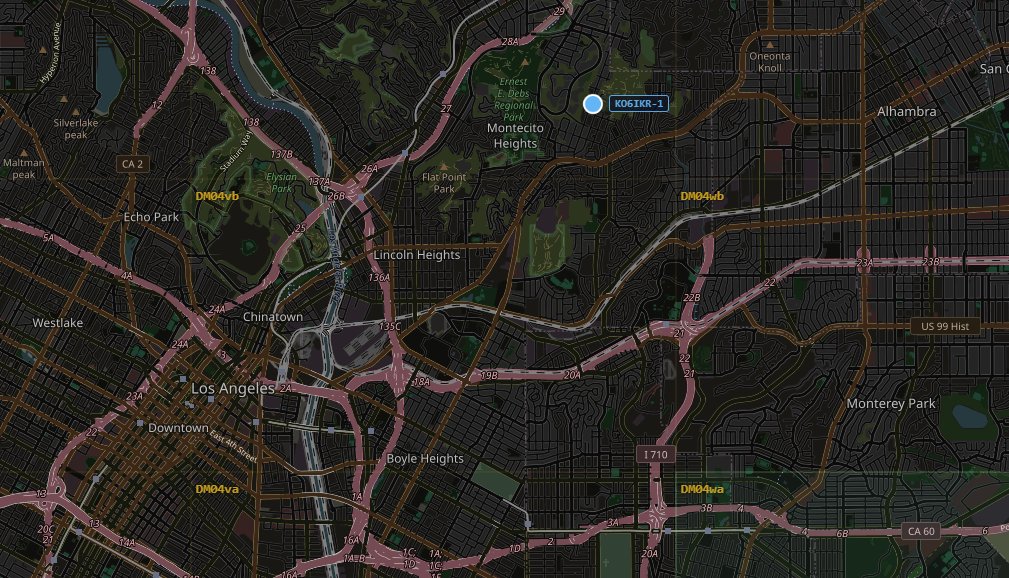
- Every station heard is a dot. Lines between stations are links, coloured by signal quality.
- Click a station for its details. The box stays open until you click again.
- 📍 Me brings you back to your own position.
- Dark and Map switch between a dark background and a normal street map.
- As you zoom in, the Maidenhead grid appears, down to 8 characters.
- Map pictures you've looked at are kept on your computer, so those areas still show without internet.
Map data © OpenStreetMap contributors.
11The public map & updates
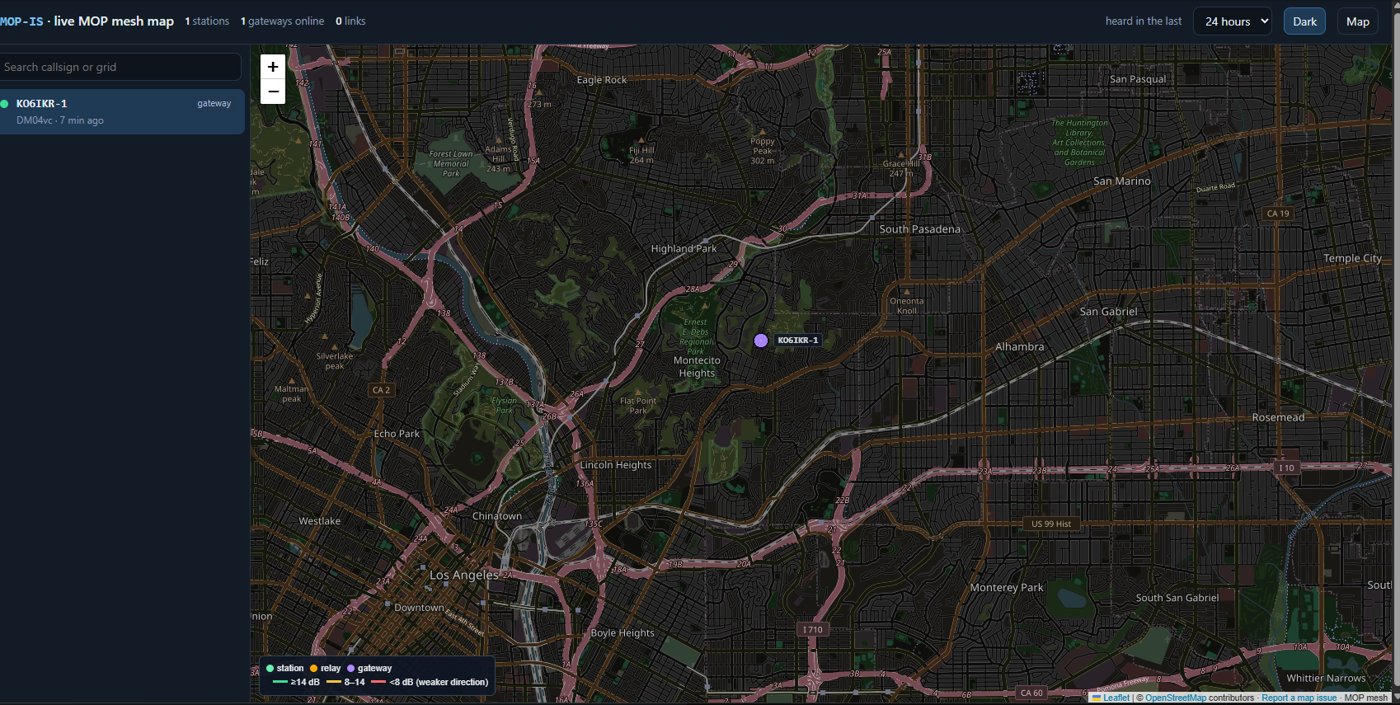
Optional: share what your station hears on the MOP-IS map, which anyone can watch in a browser.
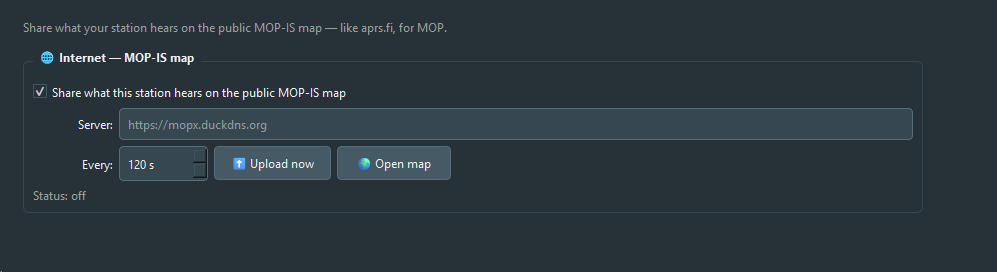
Share what you hear
Where: ⚙️ Settings → Beacons & Internet, the 🌐 Internet box
- Tick Share what this station hears on the public MOP-IS map.
- Leave Server empty (MOP uses
https://mopx.duckdns.org) and Every as it is. - Press 💾 Save and apply, and make sure MOP is ● Connected.
- The status line shows ✓ uploaded after the first upload, or press ⬆ Upload now. 🌍 Open map opens the map in your browser.
Shared: callsigns, positions (as precise as each station's own beacon setting), grid, role, radio and interface, who hears whom and how well. Never the contents of messages. Every upload is signed with your key, so nobody else can upload under your callsign.
Updates
With Check for MOP updates ticked (it is, unless you untick it), MOP asks the server once a day whether there's a newer version. If there is, an orange ⬆ MOP … available button appears at the top.
- Click it. Your browser opens the download page.
- Download and Extract All… the new zip, exactly as in chapter 2.
- Start MOP.exe from the new folder, and make a new Desktop shortcut (delete the old one).
- Happy with the new version? Delete the old
MOP-…folder.
Your callsign, settings, messages and key carry over by themselves (chapter 12 explains why).
12Your files & backups
MOP keeps the program and your things in two separate places.
| Folder | What's in it | Delete it? |
|---|---|---|
| MOP-0.19.2 wherever you extracted it, e.g. the Desktop |
The program: MOP.exe and the files it needs. | Yes, once a newer version runs. |
| Documents\MOP | Your things: settings, messages, signing key, received files, map pictures. | No. Back it up now and then. |
Inside Documents\MOP
KO6IKR.key (your callsign) | Your signing key. The one file you really must back up. |
mop_settings.ini | Your settings. |
mop_data.db | Your messages and contacts. |
attachments | Files and pictures you've received. |
map_cache | Map pictures, for the map without internet. |
Back up your key
- Open File Explorer, click Documents on the left, and double-click MOP.
- Find the file named after your callsign, ending in
.key. - Copy it to a USB stick (right-click → Copy, then on the stick right-click → Paste).
Install MOP on the new computer, start it once, close it, and put your .key file
(or the whole Documents\MOP folder) in Documents\MOP on the new computer. You're
"you" again on the mesh. Without your old key, other stations and the public map will see a
different key under your callsign and distrust it.
13When something's wrong
Find what you see in the left column.
🚦 MOP won't start
| You see | Do this |
|---|---|
| Blue box "Windows protected your PC" | Click More info, then Run anyway. |
| Antivirus warns, or MOP.exe disappeared | Restore it from quarantine and mark it as allowed. |
| Nothing happens when you double-click | Wait 20 seconds. Still nothing? In the MOP program folder, look for MOP-errors.log and send it to whoever gave you MOP. |
🎙️ Radio
| You see | Do this |
|---|---|
| The radio doesn't transmit | Check Method, Port and Speed against the recipes in chapter 5, then 🔴 Test PTT (1 s) again. |
cannot open COM5 in the Activity Log | Another program is using that port (close it), or it's the wrong number (Appendix A). |
| You hear MOP in your headset or PC speakers instead of on the radio | Several devices share a name, or Windows renumbered them. Give your interface its own name (Appendix B), then pick it again in Settings → Radio and 💾 Save and apply. The Activity Log shows which device MOP opened. |
| A ✗ next to a sound device | Pick the interface's own sound card, and set it to 48 kHz (Appendix B). |
| The radio transmits but nobody hears you | Check the radio is in the right mode (DATA on Yaesu/Icom USB), and that TX drive isn't at zero. |
| They hear your beacon, but at a poor S/N, or messages fail while theirs come through fine | Audio processing on your side: switch off the speech processor, compressor and mic EQ on the radio, and Windows sound enhancements (chapter 5, Keep the sound clean). Then try a lower TX drive. |
| Nothing from one station decodes at all, though you hear it | Tone squelch (CTCSS / T SQL / DCS) on your receive side: switch to carrier squelch on the MOP channel (chapter 5). |
| Short beacons work, longer messages fail, or MOP stays at the slowest level | Check both radios are on FM wide, not narrow (chapter 5). |
cannot open the sound card or COM port, and VARA FM is installed | Close VARA FM and Winlink Express first: only one program can use them at a time. |
| You hear their beacons but often can't read them | Switch off noise reduction (DNR/NR), noise blanker and audio filters on your radio's receive side, and Windows sound enhancements on the microphone side. |
| The RX meter never moves | Wrong Input (RX), or the radio's squelch/volume to the data port is off. |
rigctld … not reachable | Start rigctld first, and check the address. |
💬 Messages
| You see | Do this |
|---|---|
| ⏸ waiting for a long time | That station hasn't been heard since. It goes out when they beacon. In a hurry? Send now. |
| ✕ failed | Look at the signal numbers in the conversation's top bar. Resend, or try when a relay is on the air. |
| ⚠️ BAD SIG on a message | The message changed on the way, or the key isn't theirs. Be careful with it, and check with the sender. |
🌍 The public map
| Status says | Do this |
|---|---|
press 💾 Save and apply to start sharing | Press 💾 Save and apply. |
waiting for Connect | Sharing only runs while connected: click ▶ Connect. |
registered with another key | Your callsign is tied to your old key (new computer?). Put your old key back (chapter 12), or ask the map's administrator to reset it. |
🆘 Still stuck? Send the log
- Click the 📡 Radio tab. The Activity Log on the right lists everything MOP did.
- Click inside the log, press Ctrl + A (select all), then Ctrl + C (copy).
- Paste it (Ctrl + V) into an email to whoever gave you MOP, and say what you expected to happen.
14Where MOP is going
MOP is young and growing fast. Here's what it can do today, where you are on the road, and what's coming. Plans can change; your feedback helps decide what comes first.
- Done
A modem of its own
32 tones in one FM voice channel, from a tough 1,050 bit/s up to 9,450 bit/s on a clean path. MOP picks the speed for each station by itself.
- Done
A mesh that finds its own way
- Beacons, routes, and relays that pass messages along, with the ✓ coming back the same way.
- Messages wait for stations that are off the air (store-and-forward).
- Conversations, groups, CQ bulletins, and the emergency channel; files, pictures, positions.
- Every message signed; compressed when that makes it shorter.
- Done
Ready for your shack
- Push-to-talk for practically every radio and interface.
- The public MOP-IS map, the download page, and automatic update notices.
- Radio, interface and ground elevation for every station; this manual.
- You are here MOP 0.19
The first testers on the air
That's you. Every beacon, delivered message, and problem you report shows what works on real radios, real antennas and real hills. When something goes wrong, send the Activity Log (chapter 13).
- Next
The EmComm tab
A sixth tab for emergency and public-service work, built on the forms and net tools served agencies already know. See the sketch below.
- Next
Mesh islands, linked: coast to coast
Gateways pass messages between separate MOP meshes over the internet, directly from gateway to gateway, with no central server. A message from Los Angeles reaches a mesh in New York, and the ✓ still comes back. See the story below.
- Later
Faster and further
- Big files in fewer transmissions.
- Shorter messages through smarter compression, tuned to ham traffic.
- Signed beacons, and the published on-air specification.
- Goal
MOP 1.0
A dependable mesh that any served agency, club, or ARES group can put on the air and count on when the phones and the internet are down.
A first look at the EmComm tab
A design sketch, not the finished screen. It brings back and improves the EmComm tools from an earlier MOP, on top of today's mesh:
📋 Incident session
Set the incident, your tactical callsign (SHELTER-2, EOC, MEDIC-1…), net control and the operational period once. Every message and form carries them; the session survives a restart.
⚡ Quick send
One button for the messages a net sends over and over: check-in, check-out, status, request, medical, welfare, sitrep. Fill in the blanks, send.
📝 ICS forms
ICS-213, 214, 202, 204, 205 and 205A, a position report and an earthquake report, filled in on screen, sent compact over the mesh, and shown as a proper form on the other side.
📒 Traffic log
Every message in and out, with time and delivery tick. Saved for the ICS-214 activity log and the after-action report.
The bigger picture
Coming next: a message from Los Angeles to New York
How a message will cross the country once gateways are linked. Callsigns are made up.
- W6QQQ in Los Angeles writes to K1ZZZ in New York. Her MOP doesn't know K1ZZZ, but from the beacons it hears it knows a gateway nearby, KO6IKR-GW, that has internet.
- MOP sends the message as one short burst, about a second on the air. No connecting, no handshake.
- A relay on a hill hears it and passes it on toward the gateway.
- The LA gateway doesn't have K1ZZZ nearby, but it has heard from the New York gateway, W1ABC-GW, that K1ZZZ is one of its stations.
- The LA gateway sends the message straight to the New York gateway over the internet. Gateway to gateway, no central server. The signature travels with it, so New York can check it really came from W6QQQ.
- K1ZZZ's radio is off. The New York gateway holds the message and waits.
- K1ZZZ switches on. As soon as his station is heard, the gateway sends him the message.
- K1ZZZ's MOP confirms, and the confirmation travels all the way back. In Los Angeles, W6QQQ's message turns to ✓ delivered.
Everything up to step 3, and steps 6 to 8 inside one mesh, works today. Steps 4 and 5, the gateways talking to each other, are what's being built next.
Served agencies, ARES teams and clubs all work a little differently. Which forms, which quick messages, which features would make MOP useful in your next exercise? Tell the person who gave you MOP: that's how the road map gets its order.
AFinding your COM port
When an interface or radio connects over USB, Windows gives it a number like COM5. MOP needs that number to key your radio.
- Plug in the interface or radio, and switch the radio on.
- Press the Windows key (bottom-left of the keyboard, with the Windows logo), type
device manager, and click Device Manager. - Find Ports (COM & LPT) and click the little arrow › in front of it.
- Look for a line like these, and write down the number in brackets:
| You see | It is |
|---|---|
Silicon Labs CP210x USB to UART Bridge (COM5) | A Digirig Mobile |
Silicon Labs Dual CP2105 USB to UART Bridge: Enhanced COM Port (COM6) | A Yaesu FT-991A, FT-710 or similar: use this Enhanced one |
Silicon Labs Dual CP2105 … Standard COM Port (COM7) | The radio's other port: not this one |
USB Serial Device (COM4) | Many Icom radios (IC-7300, IC-705, IC-9700) |
Unplug the USB cable and watch which line disappears. Plug it back in: that's yours.
Windows is missing the driver. For a Digirig and most Yaesu radios it's the Silicon Labs CP210x driver, free from silabs.com or your radio maker's website. Install it, then unplug and plug in again.
BSetting your sound card to 48 kHz
MOP's modem needs the interface's sound card set to 48 kHz, both directions. Two minutes.
Speaker side (MOP → radio)
- Right-click the speaker icon 🔊 at the bottom-right of the screen, next to the clock.
- Click Sound settings.
- Scroll down and click More sound settings (Windows 11) or Sound Control Panel (Windows 10). A small window with tabs opens.
- On the Playback tab, click your interface once (USB Audio Device, USB Audio CODEC or USB PnP Sound Device).
- Click Properties, then the Advanced tab.
- Under Default Format, choose 2 channel, 16 bit, 48000 Hz (DVD Quality), or 1 channel if that's all it offers. Click OK.
Microphone side (radio → MOP)
- In the same small window, click the Recording tab.
- Click your interface's microphone once, then Properties → Advanced.
- Choose … 48000 Hz again, and click OK, then OK to close.
On the Playback tab, keep your normal speakers as the default device. Otherwise Windows sounds (dings, notifications) go out over the air.
Give your interface its own name
With more than one USB sound card plugged in (a Digirig for each radio, a USB headset, a webcam), they often all have the same name. Windows lets you rename them, and MOP then shows your name.
- In the same small sound window, on the Playback tab, right-click the interface and choose Properties.
- On the General tab, the name at the top is a box you can type in. Replace it with a short
name of your own, for example
Digirig 991. Keep it under about 25 letters. Click OK.
Not sure which one it is? Unplug the interface: the one that disappears is it. - Do the same on the Recording tab for its microphone side, for example
Digirig 991 RX. - In MOP: ⚙️ Settings → Radio, press 🔄 Refresh, pick your newly named devices, and press 💾 Save and apply.
Windows remembers the name for that interface in that USB socket. Plugged into a different socket, it may come back as "USB Audio Device", and you rename it once more.
Switch off sound enhancements (both sides)
- Still in the Properties window of the interface (Playback side, then Recording side),
look for an Enhancements tab. Tick Disable all enhancements (or untick every effect).
Windows 11 may show this as Audio enhancements: Off in the device's page in Sound settings instead. - If you see an Advanced tab option Enable audio enhancements, untick it too. Click OK.
- On the Communications tab of the small sound window, choose Do nothing, so Windows never turns the interface down when it thinks you're on a call.
Back in MOP, ⚙️ Settings → Radio now shows a ✓ next to both.
CWords you'll meet
| Word | Plain meaning |
|---|---|
| Beacon | A short "I'm here" transmission: callsign, position, who you hear. |
| Mesh | All MOP stations together, passing messages for each other. |
| Relay | A station that passes messages along for stations that can't hear each other. |
| Gateway | A station that also shares what it hears on the public internet map. |
| Hop | One trip from one station to the next. Via one relay is two hops. |
| ACK | "Got it": the confirmation that turns ⏳ into ✓. |
| S/N, dB | Signal-to-noise ratio: how clearly a signal comes through. Higher is better. |
| Level (L0–L6) | MOP's speed steps. L0 is slow and tough; higher levels are faster but need a cleaner signal. |
| OFDM | How MOP's modem works: 32 tones at once in one FM voice channel. |
| Signing key | Your personal digital signature. Proves a message is yours; hides nothing. |
| PTT | Push-to-talk: how MOP switches your radio to transmit. |
| CAT | Computer control of a radio over its USB or serial port. |
| COM port | The number Windows gives a USB serial connection, like COM5. |
| Sound card | The audio part of your interface or the radio's USB connection. |
| 48 kHz | The sound setting MOP needs (48,000 samples per second). |
| Driver | A small program that lets Windows talk to a piece of hardware. |
| Grid square | A Maidenhead locator like DM04, the ham way to say roughly where you are. |
| FM wide / narrow | Channel width: wide is 25 kHz, narrow 12.5 kHz. MOP needs wide. |
| SSID | A number after your callsign (KO6IKR-1) when you run more than one station. |
MOP is free for licensed amateur radio operators. It includes third-party
components under their own licenses (Qt and PySide6 under the LGPL v3); see LICENSE
and THIRD_PARTY_NOTICES.md in the MOP folder. Elevation data: Terrain Tiles
(SRTM/NASA, USGS 3DEP). Map data © OpenStreetMap contributors. 73 de KO6IKR.